
(Simple fixes that actually work — no apps needed)
If your Android phone battery barely lasts a day, this guide is for you.
Before you blame the battery or think about buying a new phone, pause for a moment.
Most Android battery problems are caused by settings, apps, and habits — not hardware.
The good news?
👉 You can significantly improve battery life in under 15 minutes.
Let’s fix it step by step.
First, One Important Truth About Android Battery Drain
Android phones are powerful — but that also means they do a lot in the background.
Battery drains fast when:
- Apps keep running silently
- Features stay ON even when unused
- Settings are optimized for performance, not battery
Once you control these, battery life improves immediately.
1. Check What’s Draining Your Battery (Most Important Step)
Before changing anything, see the real culprit.
What to Do
- Go to Settings → Battery
- Open Battery usage
- Look at the top 3 apps
You’ll usually see:
- Social media apps
- Video apps
- Games
- Google services
📌 If one app is unusually high, that’s your problem.
2. Stop Background Apps From Draining Power
Many apps work even when you’re not using them.
Fix It
- Go to Settings → Apps
- Select an app you rarely use
- Tap Battery
- Choose Restricted or Limit background usage
⚠️ Don’t restrict apps like:
- Phone
- Messages
- WhatsApp (if you need instant notifications)
3. Use Android’s Built-In Battery Saver (Correctly)
Android’s Battery Saver actually works — if used right.
Best Way to Use It
- Turn it ON at 30–40%, not 5%
- Or enable Schedule Battery Saver
What It Does
- Limits background activity
- Reduces animations
- Lowers performance slightly
You won’t even notice — but your battery will.
4. Screen Settings That Save HOURS of Battery
Your screen is the biggest battery eater.
Do These 4 Things
- Enable Adaptive Brightness
- Reduce brightness manually indoors
- Use Dark Mode (especially on AMOLED screens)
- Set Screen timeout to 30 seconds or 1 minute
📱 On AMOLED phones, Dark Mode can save 10–20% battery daily.
5. Turn Off Features You’re Not Using
Android enables many features by default — even if you never use them.
Turn OFF When Not Needed
- Bluetooth
- NFC
- Hotspot
- Nearby device scanning
📍 Go to Settings → Location → Location services
Turn off WiFi & Bluetooth scanning if you don’t need them.
6. Control Location Access (Hidden Battery Drain)
Location services are one of the most ignored drains.
Fix This
- Go to Settings → Location
- Open App location permissions
- Change permissions to:
- Allow only while using the app
- Or Don’t allow
Apps like:
- Social media
- Shopping apps
- Games
👉 Don’t need location all the time.
7. Notifications Are Costing You Battery
Every notification:
- Wakes your screen
- Uses data
- Consumes power
Smart Fix
- Keep notifications for:
- Calls
- Messages
- Important apps only
- Disable spam notifications from games & shopping apps
Less notifications = more battery + more focus.
Why Your Phone Battery Drains Fast (And How to Fix It)
8. Keep Apps & Android Updated (But Carefully)
Updates often fix:
- Battery bugs
- Performance issues
Best Practice
- Update Android when stable (not beta)
- Update apps regularly
- Delete apps you no longer use
❌ Avoid “battery booster” apps — they usually make things worse.
9. Charging Habits That Extend Battery Life
Bad charging habits slowly damage your battery.
Do This Instead
- Keep battery between 20% – 80%
- Avoid overnight charging every day
- Use original or certified chargers
- Don’t use phone heavily while charging
🔋 These habits improve long-term battery health, not just daily usage.
Why Your Phone Battery Drains Fast (And How to Fix It)
10. When Battery Replacement Is the Right Choice
If your phone is 2–3 years old, settings alone may not be enough.
Signs You Need a New Battery
- Phone dies suddenly at 20–30%
- Overheats quickly
- Battery drains extremely fast even on standby
💡 Replacing the battery is much cheaper than buying a new phone.
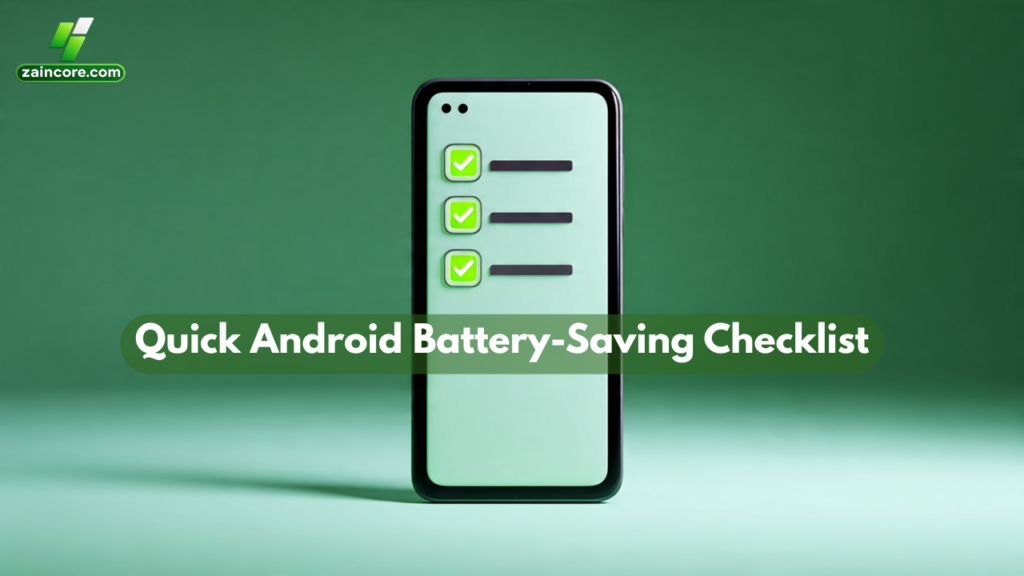
Quick Android Battery-Saving Checklist
✔ Check battery usage
✔ Restrict background apps
✔ Use Battery Saver early
✔ Reduce screen brightness
✔ Control location access
✔ Disable unused features
✔ Clean notifications
✔ Charge smartly
Final Thoughts
You don’t need a new Android phone.
You need better control over the one you already have.
Once you apply these steps, you’ll notice:
- Longer battery life
- Less heating
- Smoother performance
And best of all — no extra apps required.